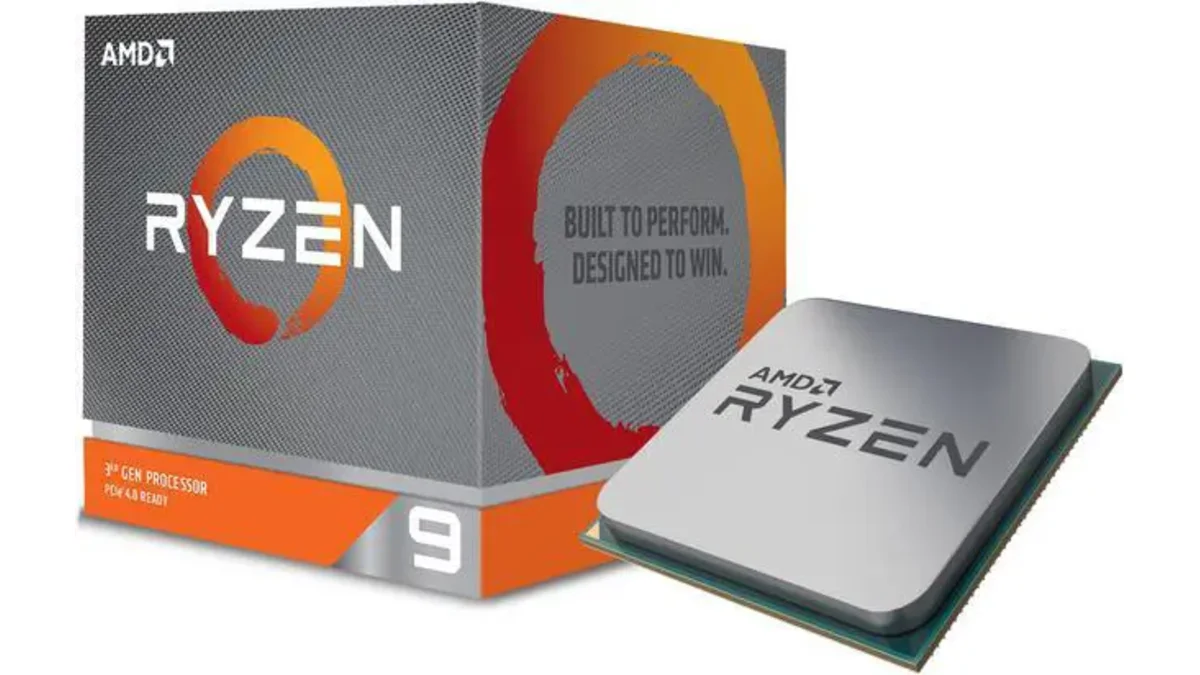
AMD Ryzen 9 3900X
12-core, 24-thread AMD Ryzen 9 3900X desktop processor (Zen 2, AM4) with 4.6 GHz max boost for high-end content creation and multitasking.
3 retailers


This tutorial takes about 5 minutes to complete.
Windows 11 removes the normal "offline account" option from setup. When it detects a network connection, it forces you to sign in with a Microsoft account — no local account choice at all. This tutorial walks through installing Windows 11 completely offline and using a registry trick (BypassNRO) to bring back the local account path. No email, no tracking, full control.
You'll download the official ISO via Microsoft's Media Creation Tool, boot from it, apply the bypass during setup, and finish with a fully local Windows 11 Pro installation. This tutorial was verified on a Ryzen 9 3900X workstation.
Go to microsoft.com/software-download/windows11 and scroll down to Create Windows 11 installation media. Click Download now under Media Creation Tool for Windows 11.
Run mediacreationtool.exe from your downloads folder, click Yes when prompted by UAC, accept the license terms, then uncheck Use recommended options. Choose ISO file, pick your language and edition (select Windows 11 Pro), and save the ISO to your downloads folder.
Once it finishes, open the file location and close the tool.
Copy the ISO to your Ventoy USB drive or NVMe boot drive. If you don't have Ventoy set up yet, you can use the Media Creation Tool to format a USB directly — but if you already have Ventoy, just drop the ISO file onto it like any other file.
Restart your PC and enter the BIOS by pressing F2, Del, F9, F10, F11, or F12 (the exact key depends on your motherboard or laptop — check its documentation if you're unsure).
Change the boot priority so your Ventoy USB loads first. Save and exit.
When Ventoy appears, select the Windows ISO and press Enter. Boot into normal mode.
Click your language, time format, and keyboard layout. Click Next, then click Install Now.
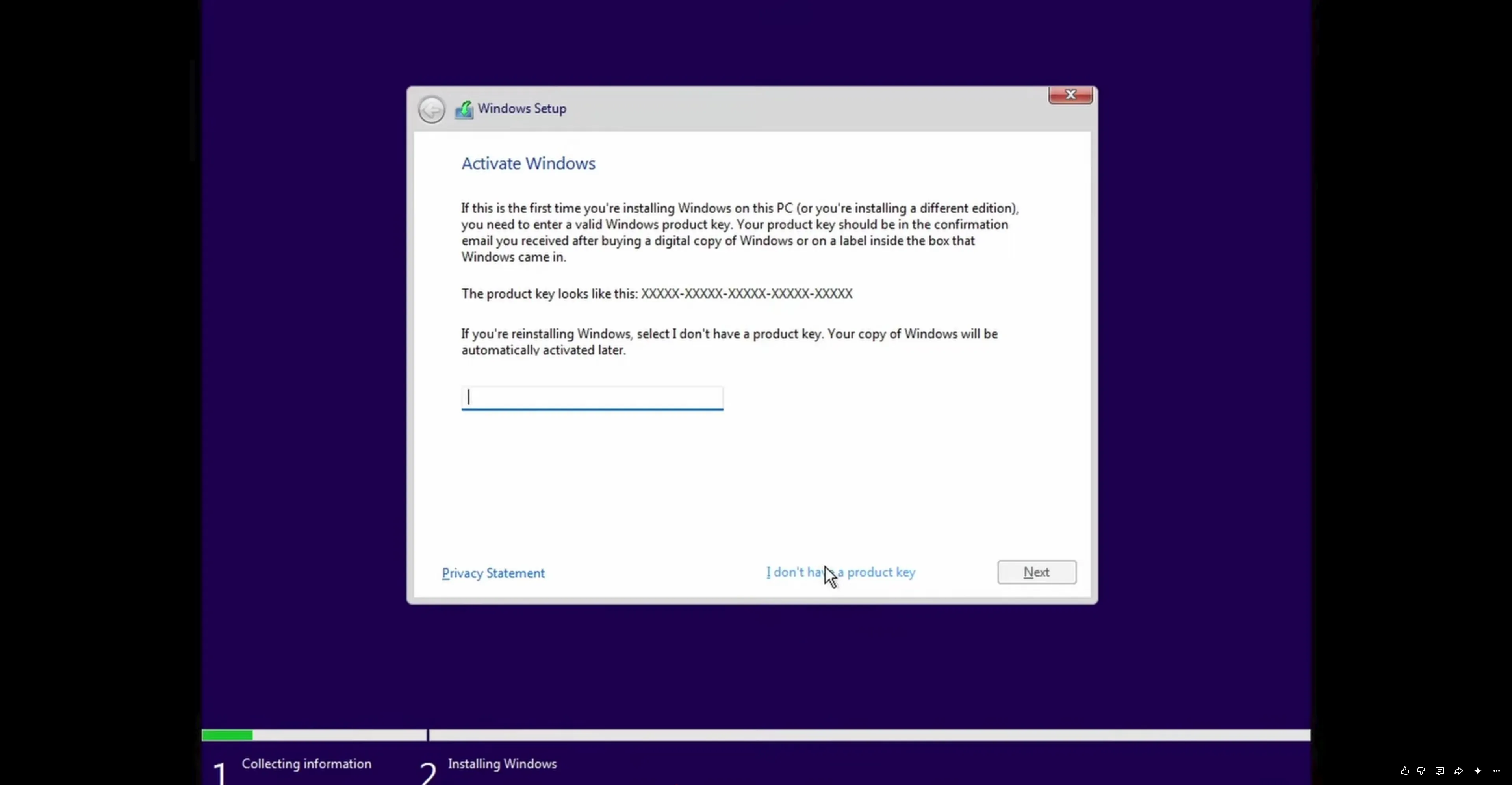
Click "I don't have a product key". Choose Windows 11 Pro (it includes BitLocker, Remote Desktop, Hyper-V, and Group Policy — features Home lacks). Click Next.
Choose Custom: Install Windows only (advanced). Select your target drive, click New, allocate the full size, then click Apply and OK. This creates all the necessary partitions. Select a primary partition and click Next.
Windows will now install and restart automatically.
This is the critical part — don't skip any steps.
When the Windows setup screen appears (the one that asks for language, region, etc.), press Shift + F10 to open a command prompt.
Type regedit and press Enter. Navigate to this path:
HKEY_LOCAL_MACHINE\Software\Microsoft\Windows\CurrentVersion\OOBE
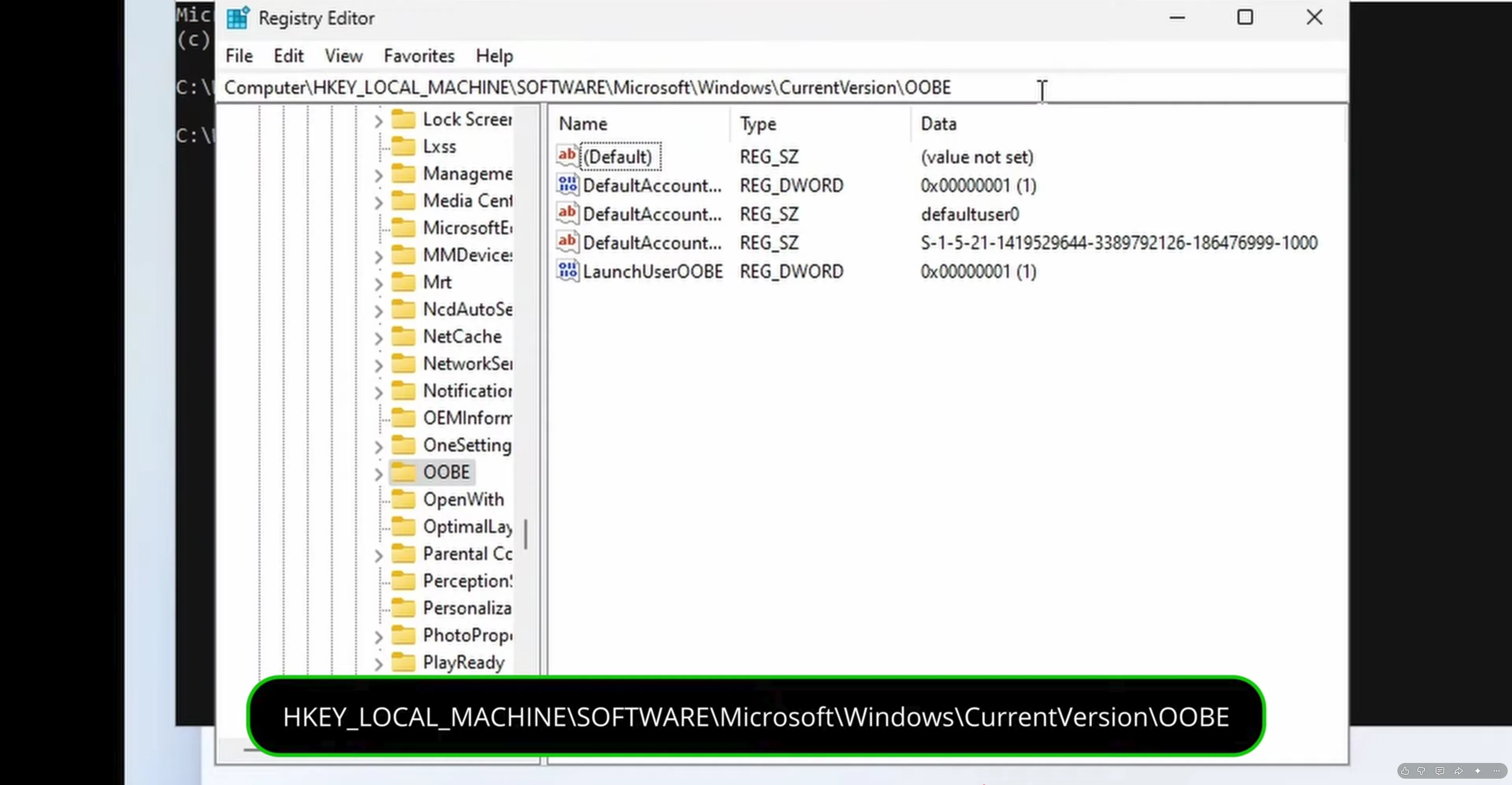
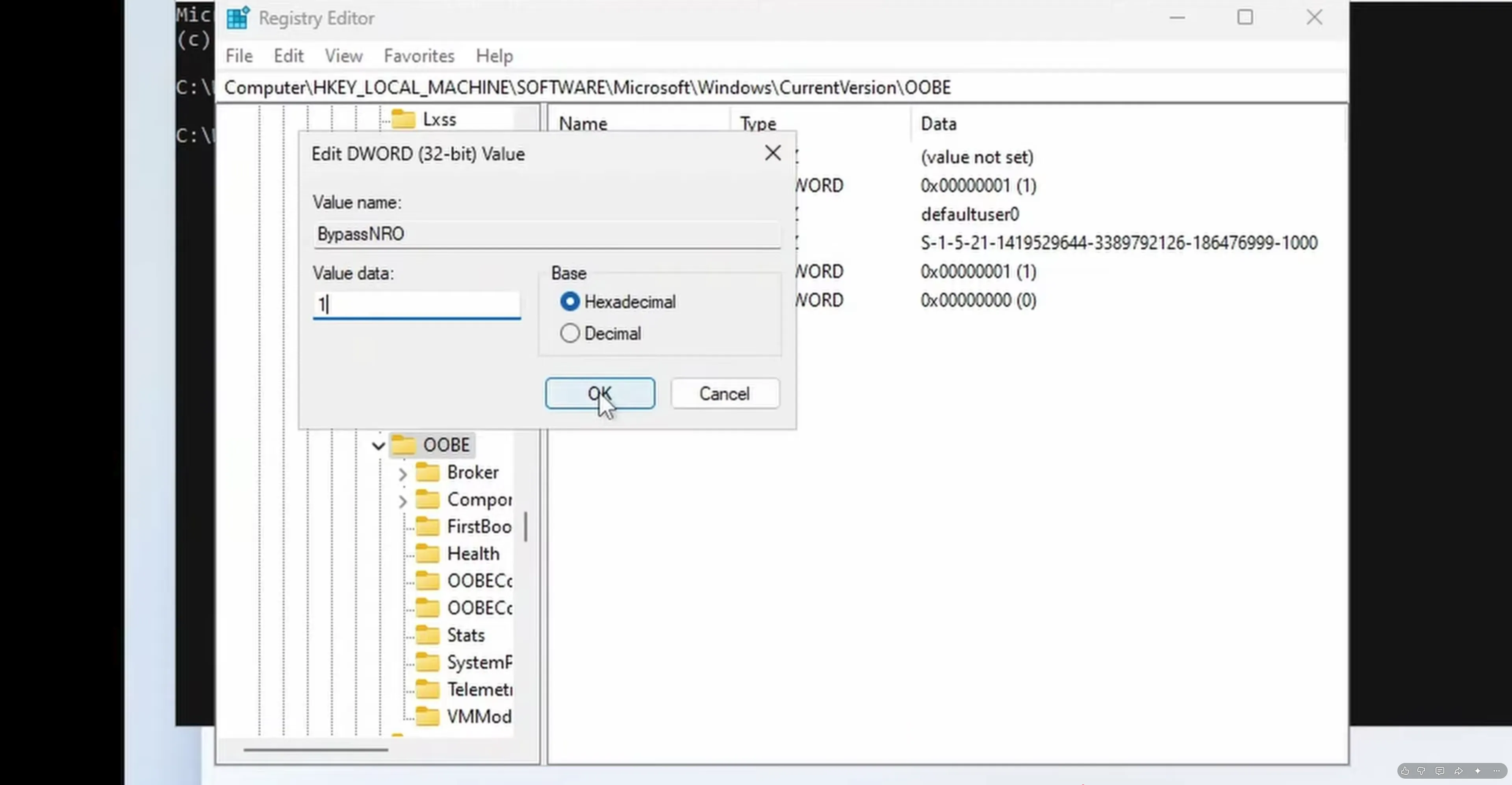
Right-click in the right pane, choose New > DWORD (32-bit) Value. Name it BypassNRO, then hit Enter.
Right-click on BypassNRO again and click Modify. Set the value data to 1, then click OK.
Close the registry editor. Back in the command prompt, type:
shutdown /r /t 0
and press Enter.
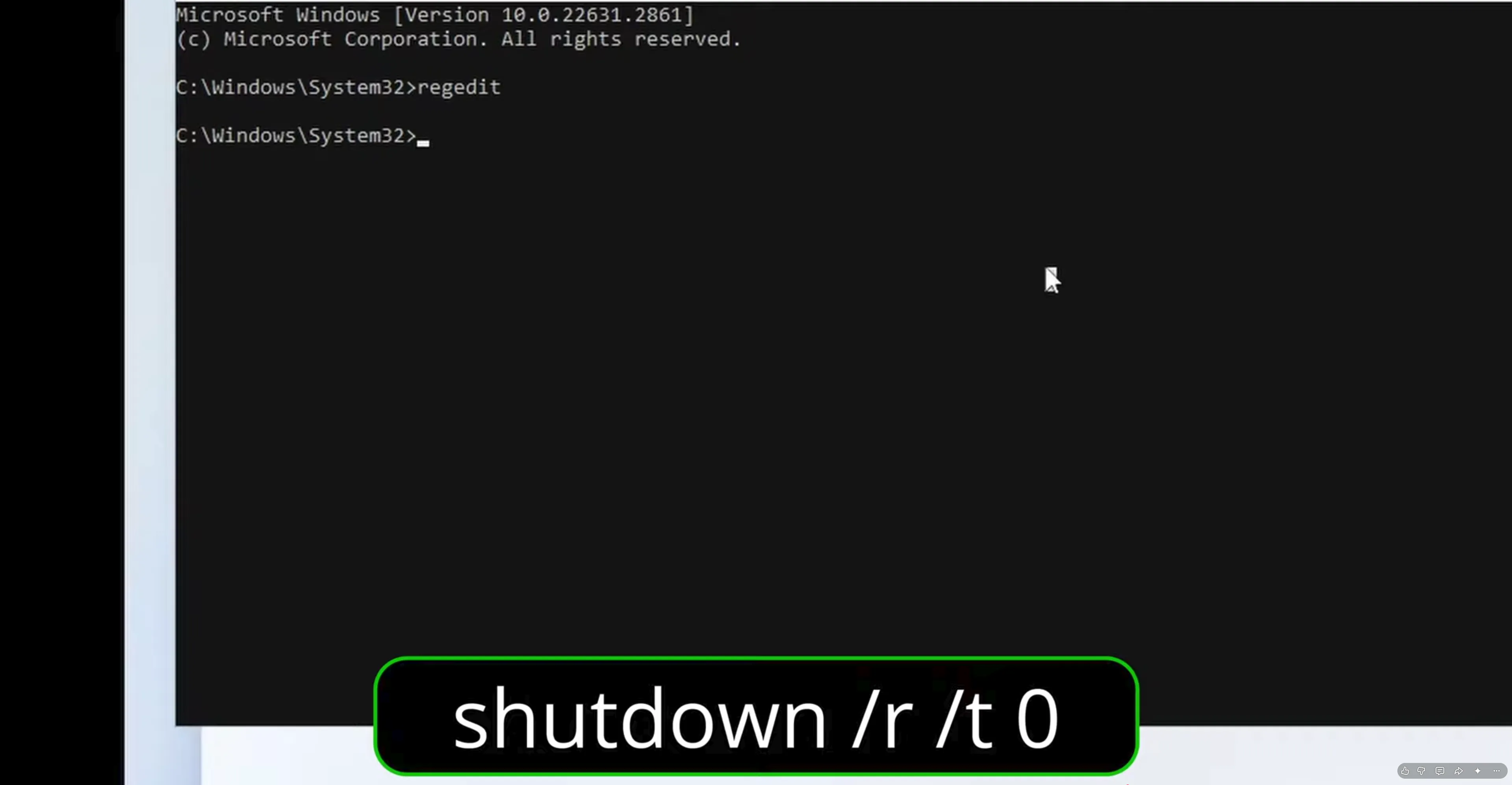
Before the system restarts, disconnect the Ethernet cable or turn off Wi-Fi. This step is essential — if Windows detects internet at the OOBE stage, it will skip the local account option and force a Microsoft sign-in.
When the system comes back up, you'll see the OOBE again:
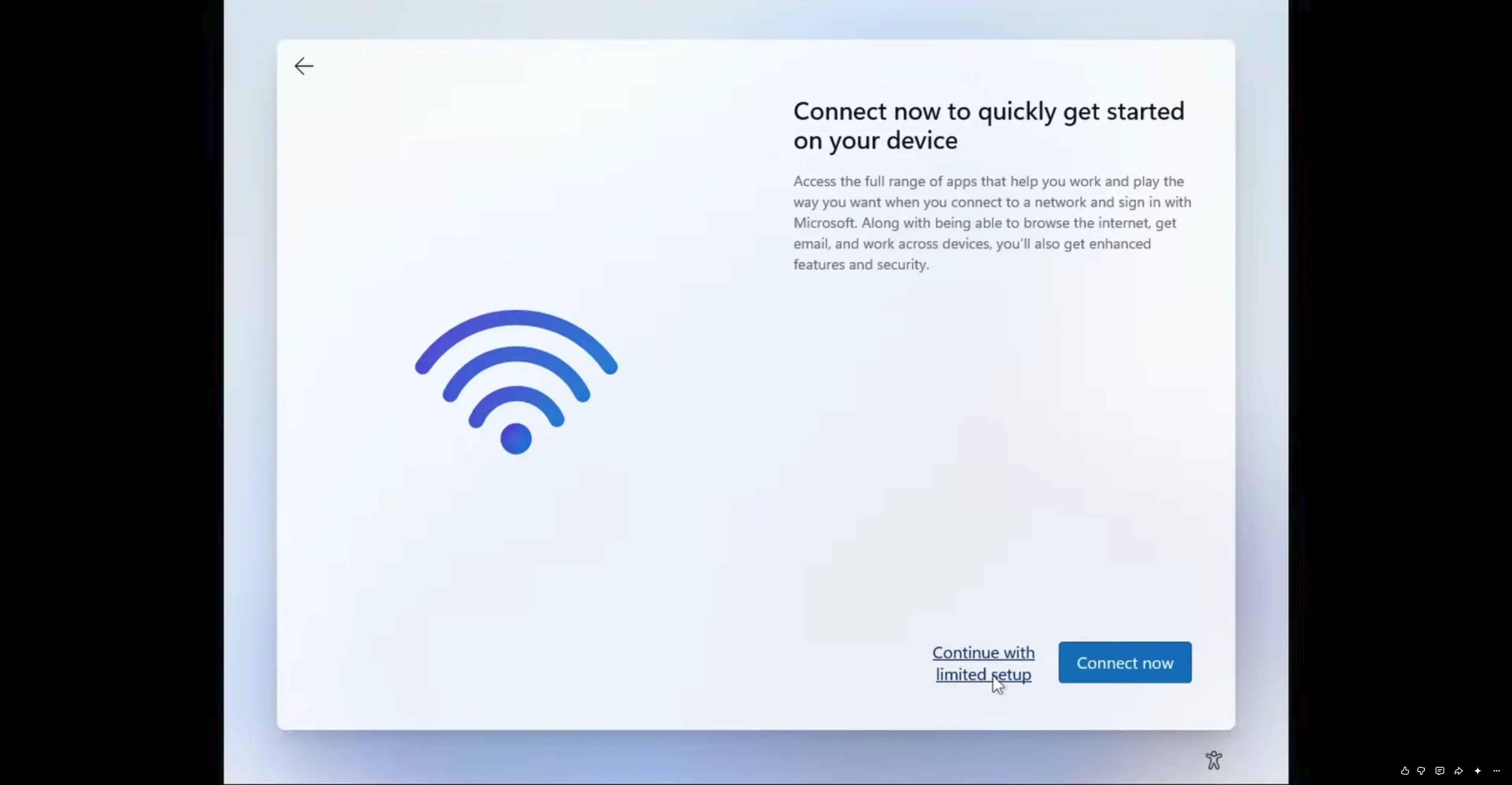
Enter a name for your PC (e.g., Desktop), click Next. Enter a password, click Next.
Turn off all the privacy settings — location, feedback, diagnostic data, etc. Click Accept on each one.
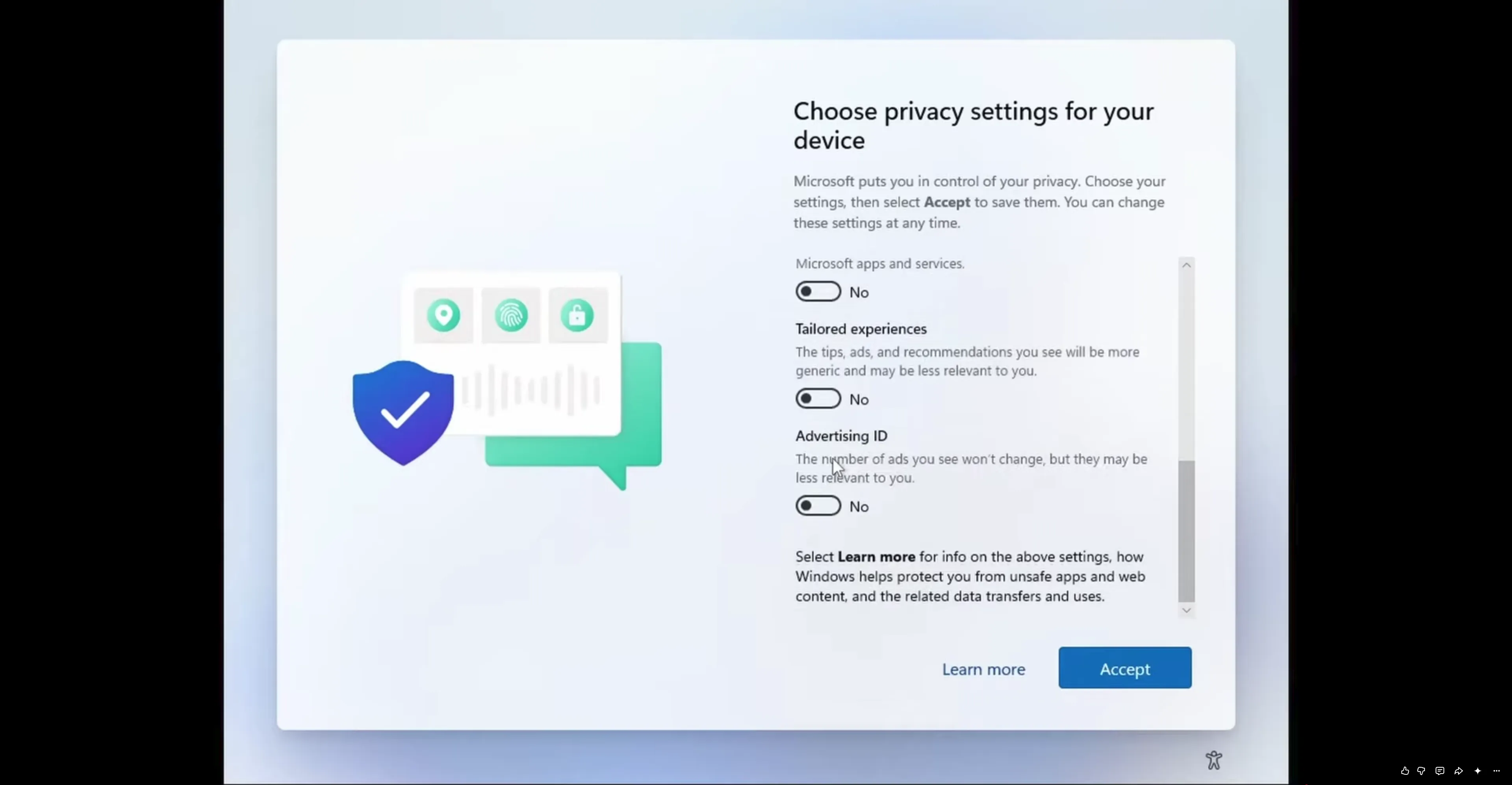
Windows 11 will now finish loading with a local account. You're in — no Microsoft sign-in required.
Reconnect your internet and run Windows Update right away to secure your system. Install any pending updates, then reboot if prompted.
That's it — you've installed Windows 11 completely offline with a local account on Windows 11 Pro, verified on a Ryzen 9 3900X workstation. Your system is fully under your control, no forced Microsoft tracking.
Note: After this install, you may notice the wallpaper hasn't changed and dark mode isn't enabled yet. A follow-up tutorial covers how to unlock those settings — check the video description for the link.
One email a week on local LLMs, DIY AI hardware, and the tools that power them. No spam — unsubscribe anytime.
Subscribe free12-core, 24-thread AMD Ryzen 9 3900X desktop processor (Zen 2, AM4) with 4.6 GHz max boost for high-end content creation and multitasking.
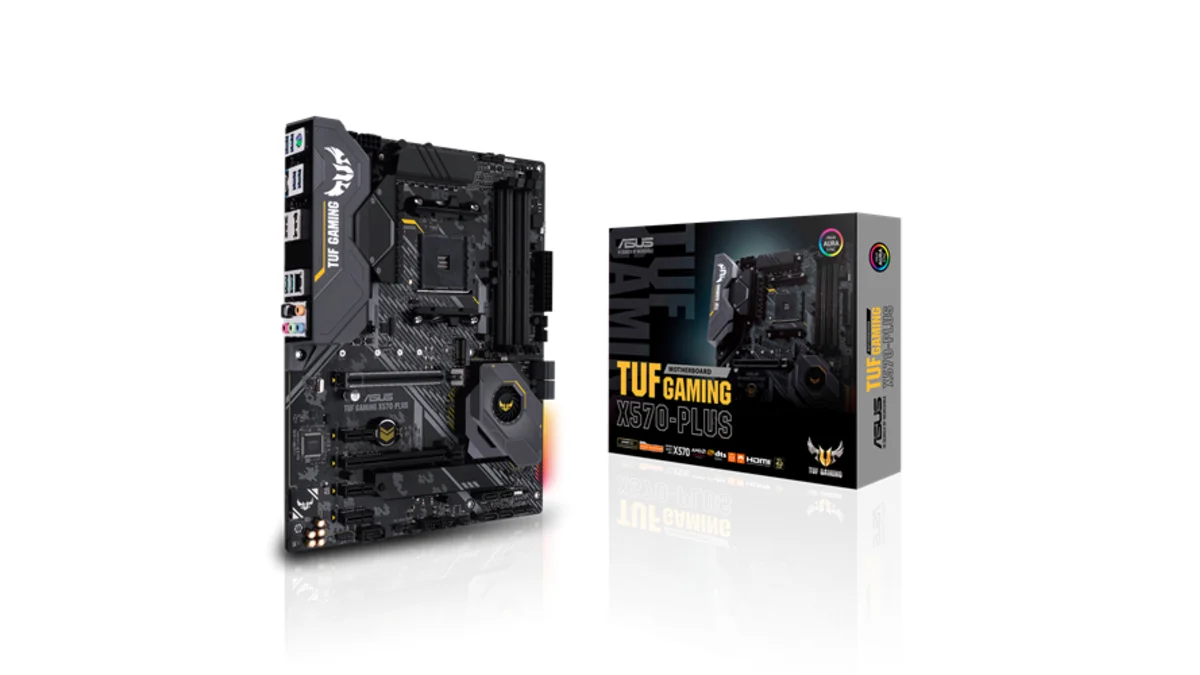
AMD X570 ATX motherboard for AM4 with PCIe 4.0, DDR4 memory support and USB 3.2 Gen 2 ports - a durable foundation for Ryzen 3000-series desktop builds
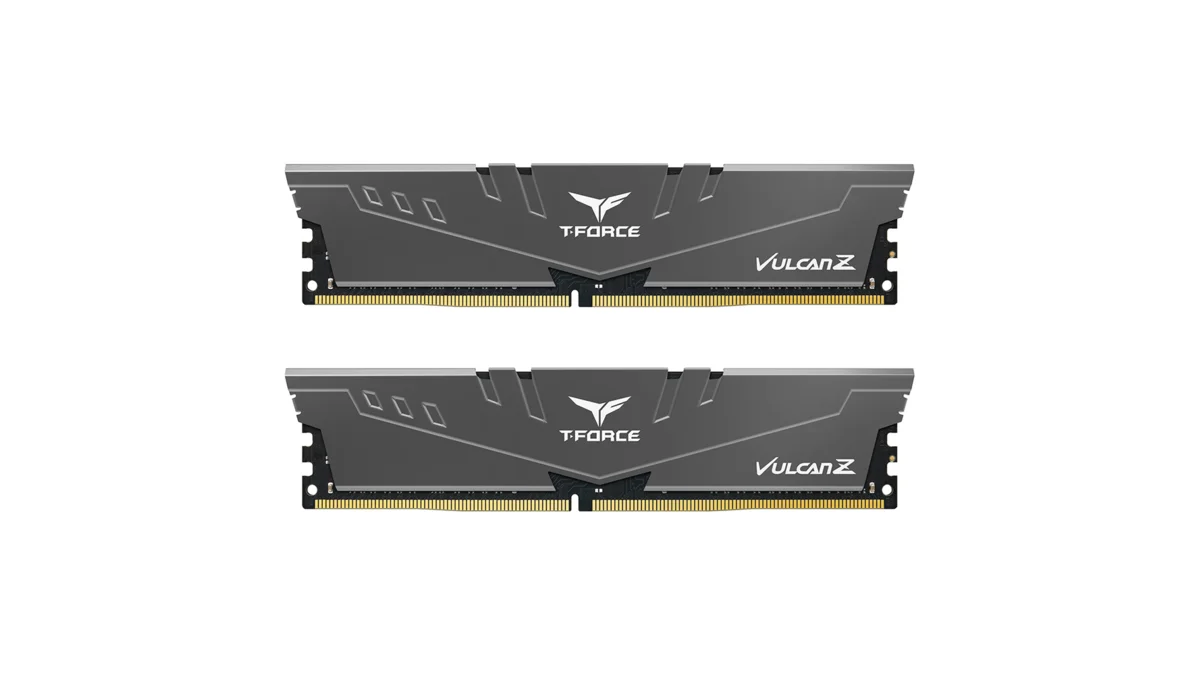
TEAMGROUP T-Force Vulcan Z 64GB DDR4 UDIMM kit - reliable overclocking memory with Intel XMP 2.0 profiles for AM4 desktop builds and Ryzen 3000-series
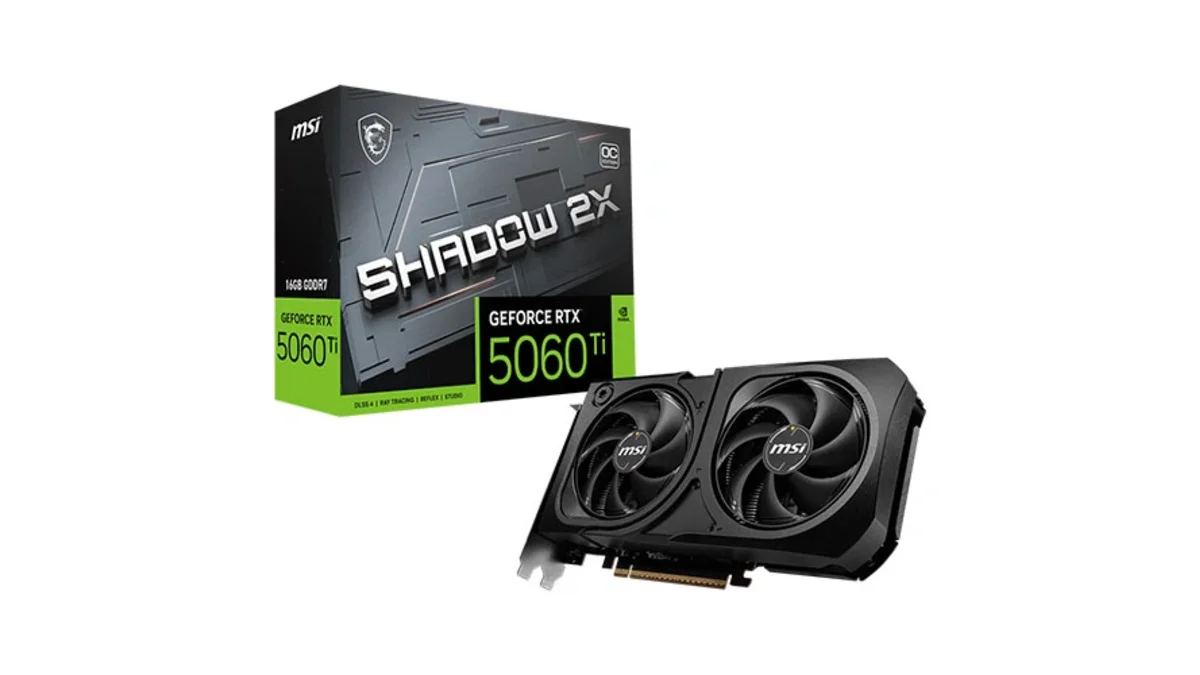
MSI GeForce RTX 5060 Ti 16GB GDDR7 graphics card with dual-fan thermal design and HDMI 2.1b DisplayPort 2.1b for gaming and content creation
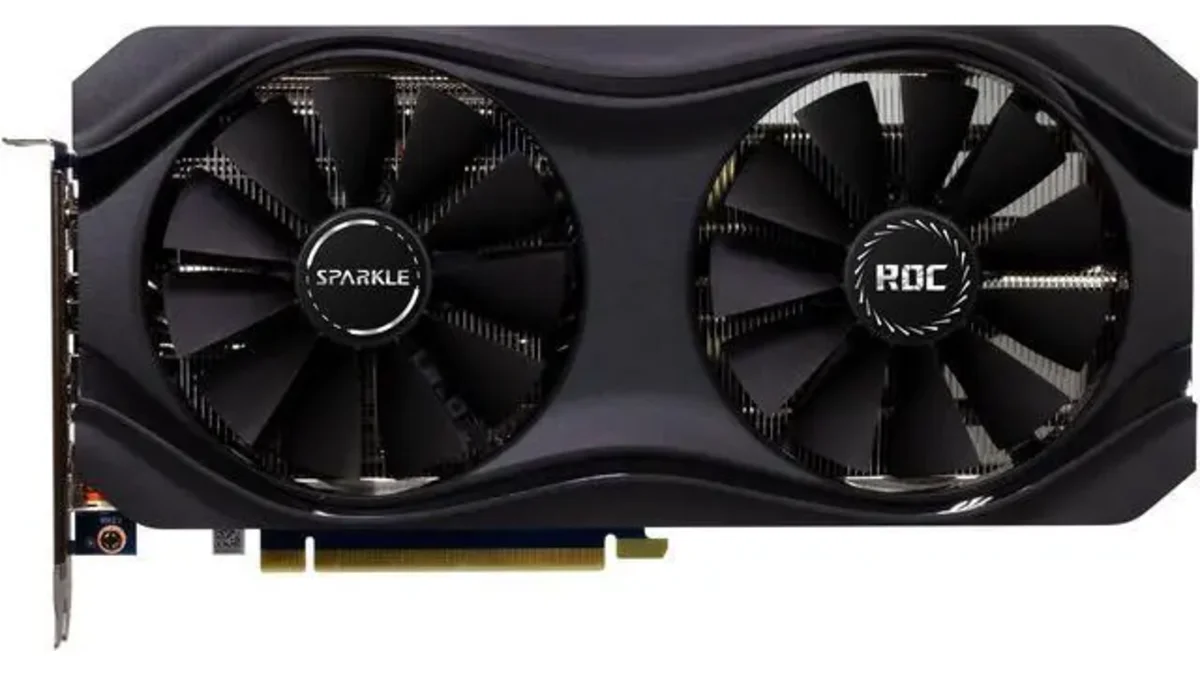
Sparkle Intel Arc A770 ROC OC Edition graphics card with 16GB GDDR6 dual DBB fans and metal backplate for gaming content creation and video editing
Microsoft Windows 11 Pro - the professional edition of Windows 11 with advanced security, remote desktop, and enterprise management features.
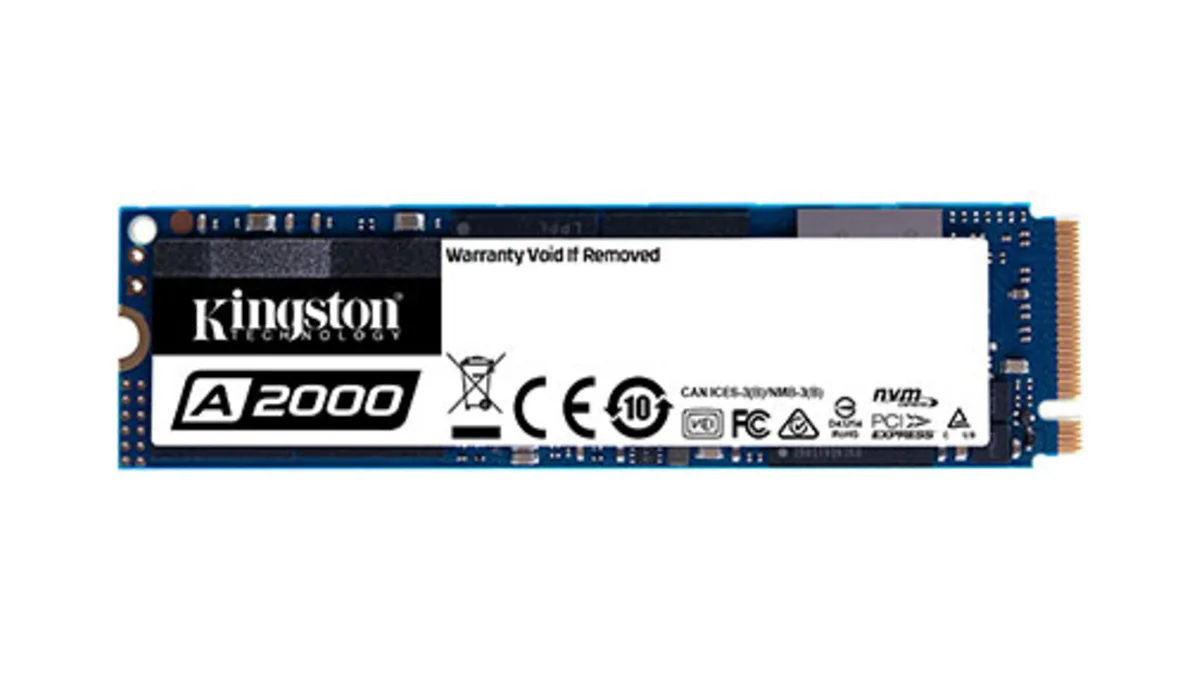
Kingston A2000 1TB PCIe 3.0 x4 NVMe M.2 SSD - reliable budget-friendly storage for everyday computing on desktops and laptops with fast sequential performance
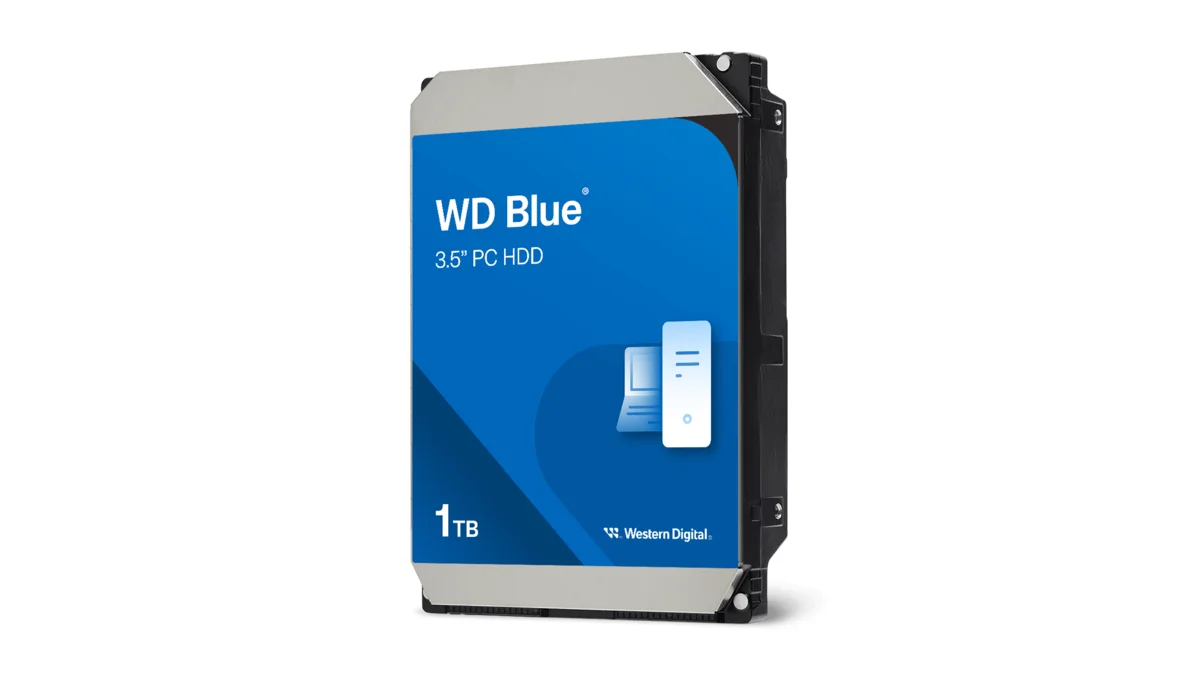
Western Digital Blue WD10EZEX 1TB 3.5" desktop hard drive with SATA III interface - reliable high-capacity storage for everyday computing needs.
HGST Travelstar Z5K1000 1TB 2.5" laptop hard drive - reliable energy-efficient storage for desktops and workstations with SATA III interface
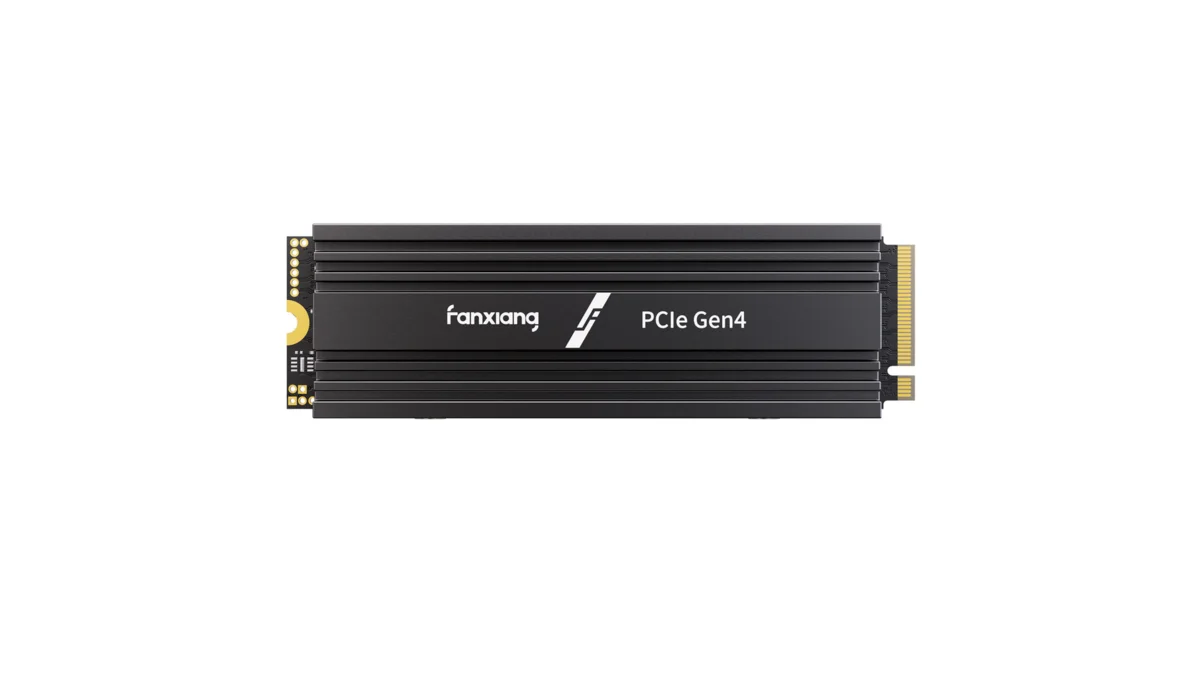
fanxiang S880R 1TB PCIe 4.0 NVMe M.2 SSD with built-in heatsink — up to 7300MB/s reads and 3D TLC NAND for high-performance desktop and console storage.